
Starting a round
Rounds are set up in a private chat with Nani Pix, so nobody in the group sees the answer. You can start one when it’s your turn, or when the turn is open to everyone, and only while no other round is running. You also have to be a member of the group.
If you can’t start right now, Nani Pix tells you why:
- It’s not your turn to start a new game right now. Someone else has the turn, or another round is being set up or played.
- You need to be a member of the group to start a game.
- Starting new games is temporarily paused — try again later. A group admin has paused new rounds.
When you start, Nani Pix tells the group that you’re preparing a round, so nobody else tries at the same moment:
🎬 Hana is preparing a new game — hang tight!
🎲 Game #88
You then have one hour to finish the setup. If you don’t, the setup is
dropped and Nani Pix tells the group: ⌛ Setup timed out without finishing — it’s
open to anyone now! Changed your mind? Send /stop to cancel the setup yourself.
Two ways in
Section titled “Two ways in”- Send a screenshot. Nani Pix first shows it back to you at stage 1, the blockiest stage, so you can judge whether it makes a good puzzle.
- Send
/newgameif you don’t have a screenshot to hand. You identify the anime first, then pick a real screenshot for it (see below).
Either way, Nani Pix then asks how you’d like to identify the anime:

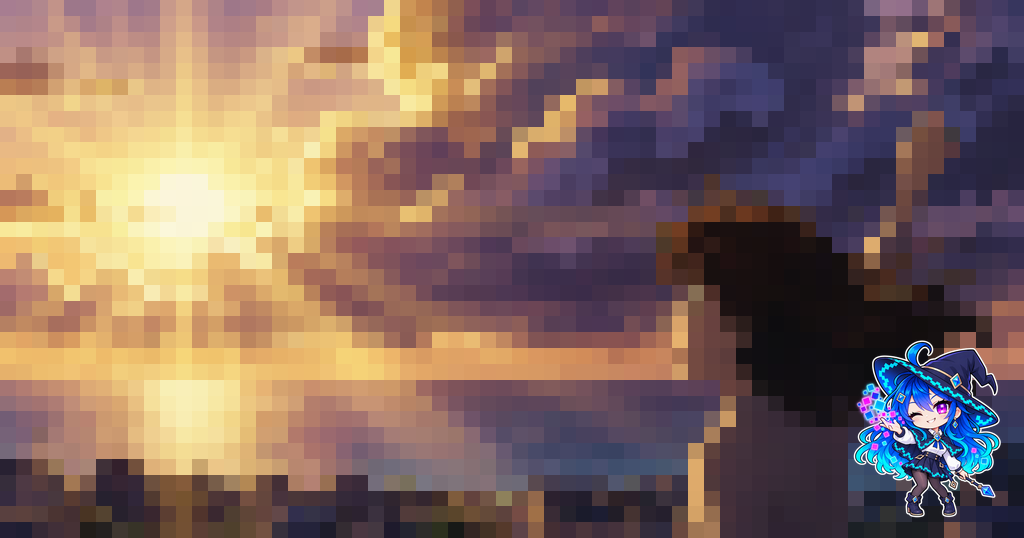
🔍 This is how your screenshot will look at stage 1, the blockiest.
How would you like to identify the anime?
Changed your mind about the screenshot? Until you’ve picked the anime, just send another photo. Nani Pix says 📷 Got it — I’ll use this screenshot instead of the first one., shows you the new one at stage 1 and asks how to identify it again. That’s also the way out when the season’s theme rule refuses your anime and you need a different screenshot.
Lost your place? Sending /newgame (or a photo on a step that doesn’t ask
for one) while your own setup is still open doesn’t start a second one: Nani Pix
shows you the step you’re on again. If that step is waiting for a photo or a synonym, it adds You’re already
setting up a game — send /stop if you’d rather abandon it and start over.
Old buttons. Buttons on earlier messages stay on screen after the setup is finished, stopped or timed out. Tapping one shows an alert: That round isn’t being set up anymore — if it’s your turn, DM me a screenshot or send /newgame to start a fresh one.
Tell Nani Pix which anime it is
Section titled “Tell Nani Pix which anime it is”Search a site
Section titled “Search a site”AniList, Shikimori, Tenrai or TMDB: type the name the way you remember it, then tap the right one of up to five results. AniList results show the year. None of these — search again lets you retry, and ↩ Different search method brings you back to the method menu if the anime isn’t on that site. Shikimori usually has the best Russian titles, so when Nani Pix speaks Russian she lists Shikimori first. TMDB only knows English titles.
Got it! What anime is this from? Type a search query.
Which one is it?
The 🔍 Searching… message turns into the results once they arrive. If the site is down, Nani Pix says so and shows the method menu again so you can try another one.
Type it yourself
Section titled “Type it yourself”Manual entry is for an anime none of the sites know. Type the title, then at least one alternative title, separated by commas or new lines. No site is used to identify it; the More names from other sites step below can still offer extra names to accept.
Got it. Now type at least one alternate title/synonym (comma- or newline-separated) so guesses can match it too.
I need at least one synonym — type one (or a few, separated by commas or new lines).
Pick from your MyAnimeList list
Section titled “Pick from your MyAnimeList list”My MAL List is shown when your group’s Nani Pix has MyAnimeList linking turned on. You browse your own MyAnimeList list, 10 entries at a time with every status included, and pick from it. The first time, she walks you through linking: open the link, log in to MyAnimeList, approve access, and paste the code you’re shown back into the chat. Your list opens straight away.
First, link your MyAnimeList account: open this link, log in, and approve access:
https://myanimelist.net/v1/oauth2/authorize?…
Then paste the code it shows you back here — you’ll go straight to your list.
Pick an anime from your MyAnimeList list:
- If the code doesn’t work, Nani Pix says That code didn’t work — it may be wrong
or expired. Paste it again, or run
/linkmalfor a fresh link. - If your list is empty, she says so and shows the method menu again.
- If MyAnimeList stops accepting the link (for example, you revoked access), she simply walks you through linking again.
- You can also link ahead of time with
/linkmaland unlink with/unlinkmal.
More names from other sites
Section titled “More names from other sites”Once the anime is identified, Nani Pix looks it up on the other sites as well, and may offer up to 10 titles it found there as checkboxes. Tick the ones that should also count as a correct guess, then tap ➕ Add selected, or ⏭ Skip. If that lookup is slow or fails, she skips this step. You can still add names yourself from the preview.
🔎 I found more names for this anime on other sites. Tick the ones that should count as a correct guess too:
Do the numbers matter?
Section titled “Do the numbers matter?”Guessing normally ignores numbers, so GITS wins GITS 2026. When a title has
a number and fewer than 5 letters once the numbers are removed, like 91 Days or
11eyes, Nani Pix asks you whether the numbers should count. A title made only
of numbers, like 22/7, is never asked about: its numbers always count.
🔢 The title “91 Days” is mostly numbers. Do guessers have to get the numbers right too?
No — the words alone are enough.
Yes — the numbers must be in the guess.
Your answer sets the 🔢 Numbers count switch on the preview, where you can still change it.
Picking a screenshot (after /newgame)
Section titled “Picking a screenshot (after /newgame)”- Choose a source: Shikimori, Tenrai or TMDB. The site you identified the anime on comes first. 📤 Upload my own instead is always there, and you can simply send a photo at any point.
- If you pick a different site from the one you identified the anime on, Nani Pix quietly takes that site’s top match for your title. If she finds none, she asks you to type a search for that site.
- Browse the gallery, five numbered screenshots at a time, using ◀️ Back and More ▶️. The numbers keep counting across pages, so the second page is Screenshots 6–10 of 23.
- If the screenshots are from a different anime, tap ❌ Wrong anime? Search again and type a better search. The button is left off the first page of the site you identified the anime on, since that one can’t be the wrong anime.
- Tap a number to pick that screenshot.
Picked the wrong anime altogether? ↩ Pick a different anime sits under the
source menu, the gallery, the extra-names question and the numbers question. It
forgets the anime (and a screenshot picked for it; a photo you uploaded stays) and
takes you back to choosing how to find one, so there’s no need to /stop and start
over.
Where should I get a screenshot from?
Which one do you want to use?
Tapping More ▶️ turns that buttons message into a Screenshots 6–10 note, then a new album of five and new buttons arrive:
Which one do you want to use?
If a site is down or has nothing, Nani Pix says so and shows the source menu again with that site marked ⚠️. It stays tappable, since outages are often brief. You can try another site, type a different search, or upload your own screenshot.
⚠️ Tenrai isn’t responding right now. Pick another source below, or send me your own screenshot.
The preview
Section titled “The preview”Before anything is posted, Nani Pix shows you privately how the round will play out: an album of the screenshot at all five stages, blockiest to clearest, with the title and every other answer that will count. The buttons come in a separate message right after it.
Here’s a preview:
Title: Whisper of the Heart
Also accepted: Mimi wo Sumaseba, 耳をすませば, If You Listen Closely, Mimi o Sumaseba
Looks good?
- 🖼️ Change image: if you uploaded the screenshot, Nani Pix simply asks you to send the new one. If you picked it from a site, you choose between 📤 Upload a new photo and 🖼️ Pick a different screenshot from the same gallery.
- 🔍 Re-search title: identify the anime again. This throws away the old titles and synonyms, and a screenshot you picked from a site, since the new anime may be a different one. An uploaded screenshot is kept. If the new title is mostly numbers, the numbers question comes back.
- 📝 Add a synonym: add more answers that should count.
- 🔢 Numbers count: shown when a title has a number in it. Turn it on if the
numbers have to be part of the guess. With it on, the
text clues hide the title’s digits as
_, like letters, instead of showing them asX. - 🎨 Pixelation: choose how the blocks are coloured (see below).
- 🖼 Clue screenshots: choose where the shop’s Extra screenshot clue gets its pictures, and add your own picks (see below). HARD MODE rounds, like every round Nani Pix starts by herself, don’t have it.
- 💰 Bounty: put pixels into the round’s pot for whoever solves it (see below).
- ✅ Confirm and start: posts stage 1 to the game topic. The round is live.
Pixelation
Section titled “Pixelation”The button shows the current choice. It opens a list of all five ways to colour the blocks, with what each one does. The choice is for this round only, and Median is the default. Picking one redraws the whole preview straight away so you can compare.
How should the screenshot be pixelated?
Nearest — picks one pixel per block; sharp, but speckles
Box — averages each block; smooth and even
Median — keeps each block’s dominant tone; the default
Mode — most frequent colour per block; speckles badly (worst — not recommended)
Lanczos — sharpest blocks; can ring on hard edges
Clue screenshots
Section titled “Clue screenshots”Players can buy an Extra screenshot in the clue shop. As the round’s author (the player who starts it), you decide where those screenshots come from. The button shows the current choice and opens a panel:
- Random (the default): a random frame from Shikimori or TMDB, as always. Your list isn’t used in this mode, but it stays, so switching back before you confirm still has it.
- Author’s: only the screenshots you add to your list. When they are all handed out, the clue is gone from the shop.
- Both: yours first, in random order, then random frames once your list runs out.
To fill your list (up to 10 screenshots), use 🔍 Add from a source to pick from the Shikimori or TMDB gallery of this anime, or 📤 Upload my own and send a photo. Send one photo at a time: tap 📤 Upload my own again for the next one. 🗑 Remove… takes one back out. A screenshot that is the same frame as your main screenshot, or as one already on the list, is refused.
🖼 Clue screenshots: what the shop’s “Extra screenshot” clue sells.
Random: a random frame from Shikimori or TMDB. Author’s: only the screenshots you add here. Both: yours first, then random ones.
Mode: Author’s · 2/10 screenshots
Good to know:
- The choice is yours only while you set the round up. After ✅ Confirm and start it can’t be changed.
- Changing the anime (🔍 Re-search title, Pick a different anime) empties the list and sets the mode back to Random, because the screenshots belonged to the old anime. 🖼️ Change image keeps the list, and drops any entry that is the new main screenshot when you confirm.
- If you confirm in Author’s or Both mode with an empty list, Nani Pix asks first: ▶️ Start anyway starts the round in Random mode, 🖼 Add screenshots takes you back to the panel.
- Your screenshots work like any other extra screenshot: the price and the limit of 3 per player don’t change, and each one is handed out once per round. The ones that were handed out show up in full quality in the clue album when the round ends; the rest stay unseen.
Bounty
Section titled “Bounty”You can put 30, 60 or 100 💠 into the round’s pot. Only the amounts you can
afford are shown, and each tap takes the pixels from your balance straight away.
The winner gets the whole pot. If you abandon the setup or stop it with /stop,
or nobody solves the round, the pot comes back to you. Other players can add to
the pot during the round with /bounty; see
Pixels and the clue shop.
💰 Put up a bounty for whoever solves your round — it comes out of your pixels and goes to the winner (refunded if nobody solves it).
Pot: 0 💠 · your balance: 75 💠
If you can’t afford even 30 💠, the menu says You don’t have enough pixels for a bounty right now.